
10: Color Picker
This project lets buttons choose which LED turns on.
This is your first “inputs + outputs” code project. The buttons are inputs your code reads, and the LEDs are outputs your code controls.
Coding ideas you will use (once the code is added):
- a loop so the board can check the buttons again and again
- conditions (
if) to decide which LED should turn on
Learn more (optional):
Goal
Press one button to turn on one LED and another button to turn on a different LED.
Parts you need
- 2 LEDs
- 2 resistors
- 2 pushbuttons
- jumper wires
- breadboard
- RP2040-Zero
Important: choose the right resistor
Your kit has 150Ω and 100Ω resistors.
- For a red or yellow LED, use 150Ω
- For a green, blue, or white LED, use 100Ω
Using the wrong resistor can damage an LED.
Wiring idea
Build it first, then compare your setup to the diagram. Did you connect each part to the pin you meant to use?
Suggested setup:
- LED A on
GP0 (GPIO 0)(we use a red LED) - LED B on
GP1 (GPIO 1)(we use a yellow LED) - button A on
GP2 (GPIO 2)(controls LED A) - button B on
GP3 (GPIO 3)(controls LED B)
Each LED still needs its own resistor, and the short leg (-) of each LED goes to GND.
For the buttons, connect one side to the GPIO pin and the other side to GND. The code uses the board's built-in pull-up resistors, so you do not need extra resistors for the buttons.
Build steps
Try each step, then check your work with the blurred photos below. Did you connect it the way you meant to?
- Place two different color LEDs and two buttons on the breadboard. Make sure each button bridges the center of the breadboard.
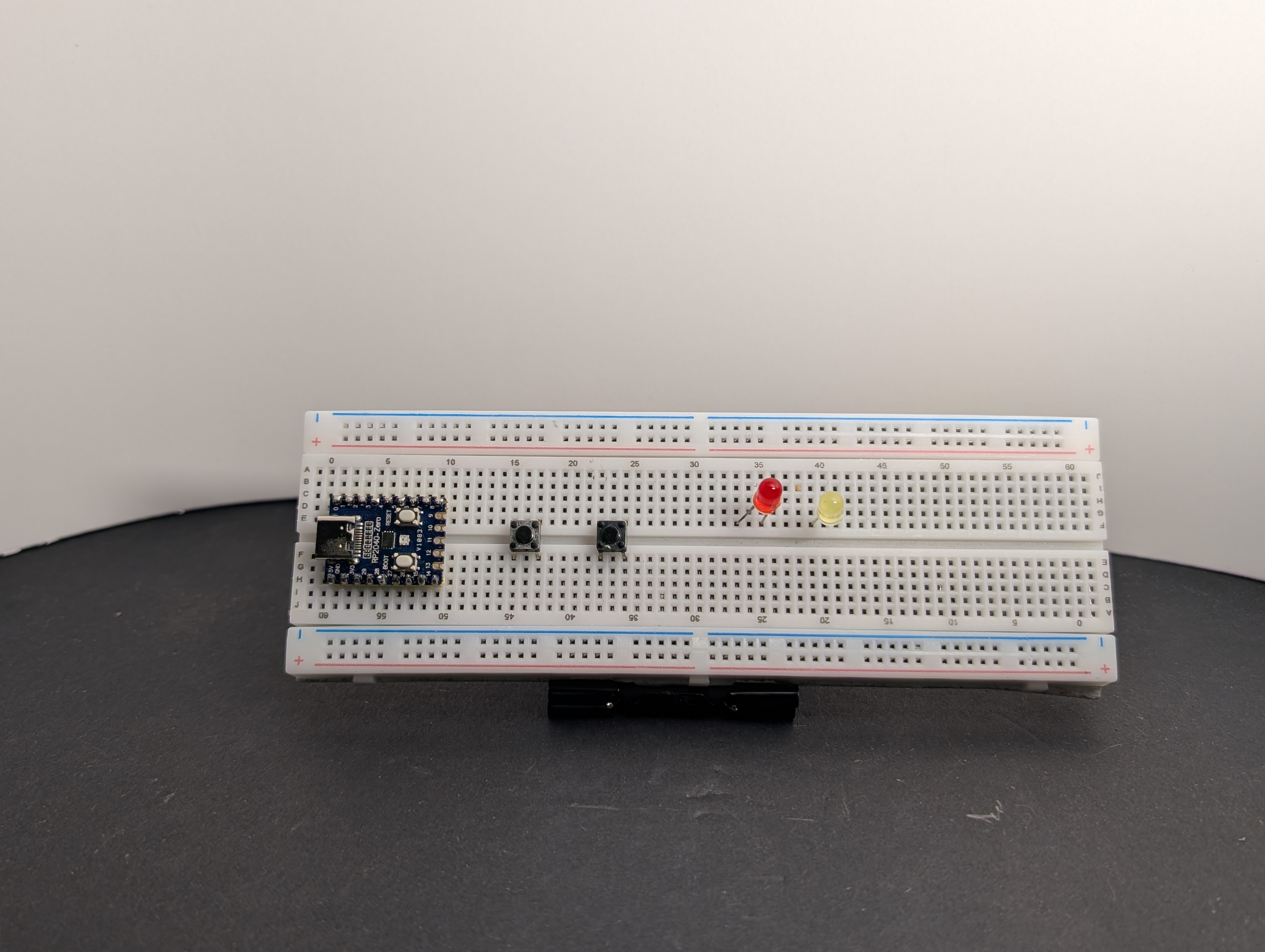
- Connect the
GNDrail toGNDon the RP2040-Zero. Then connect the short leg (-) of both LEDs to theGNDrail using resistors.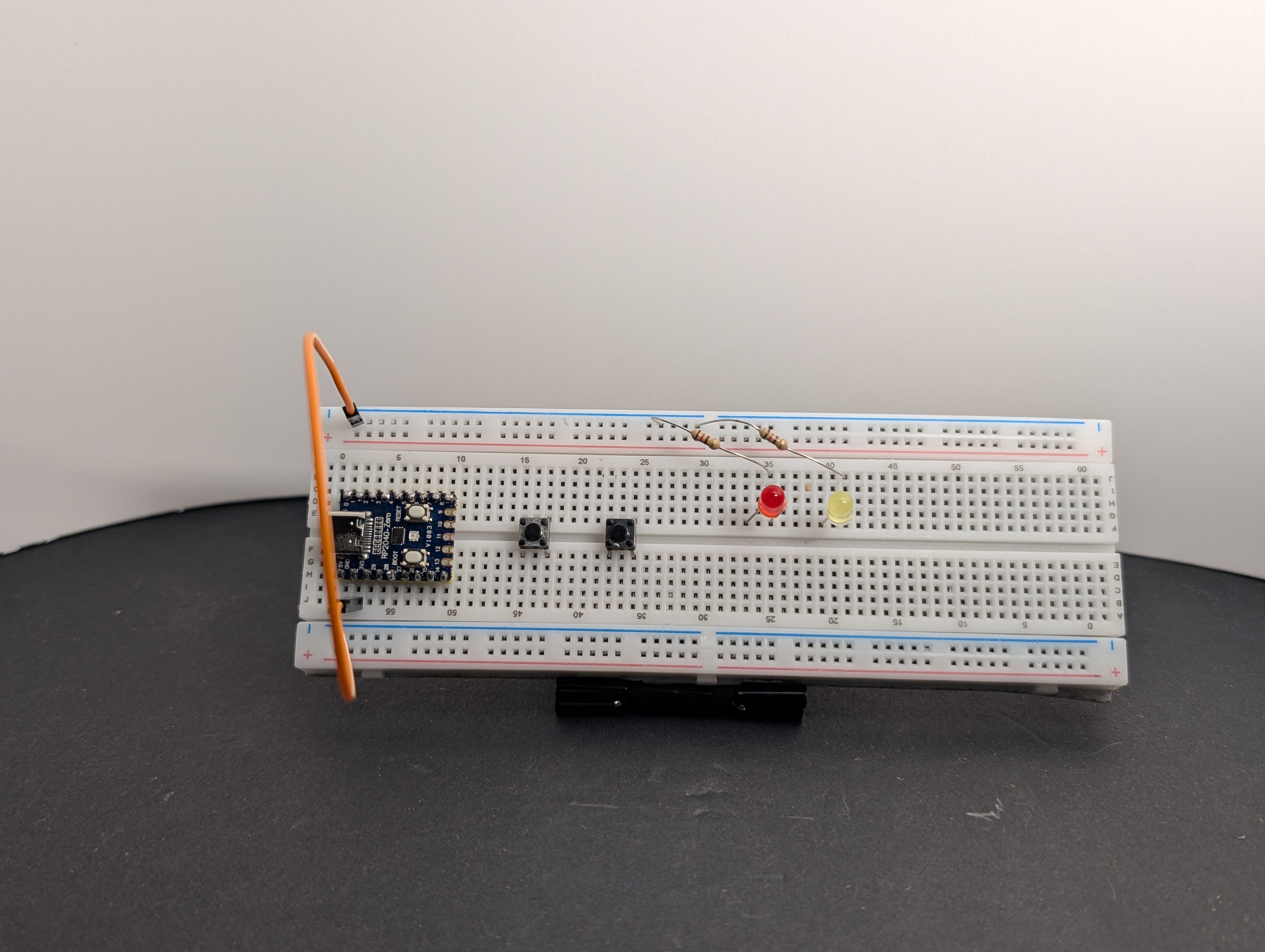
- Connect one side of each button to the
GNDrail.
- Connect the long leg (
+) of each LED to a GPIO pin: the red LED toGP0 (GPIO 0)and the yellow LED toGP1 (GPIO 1).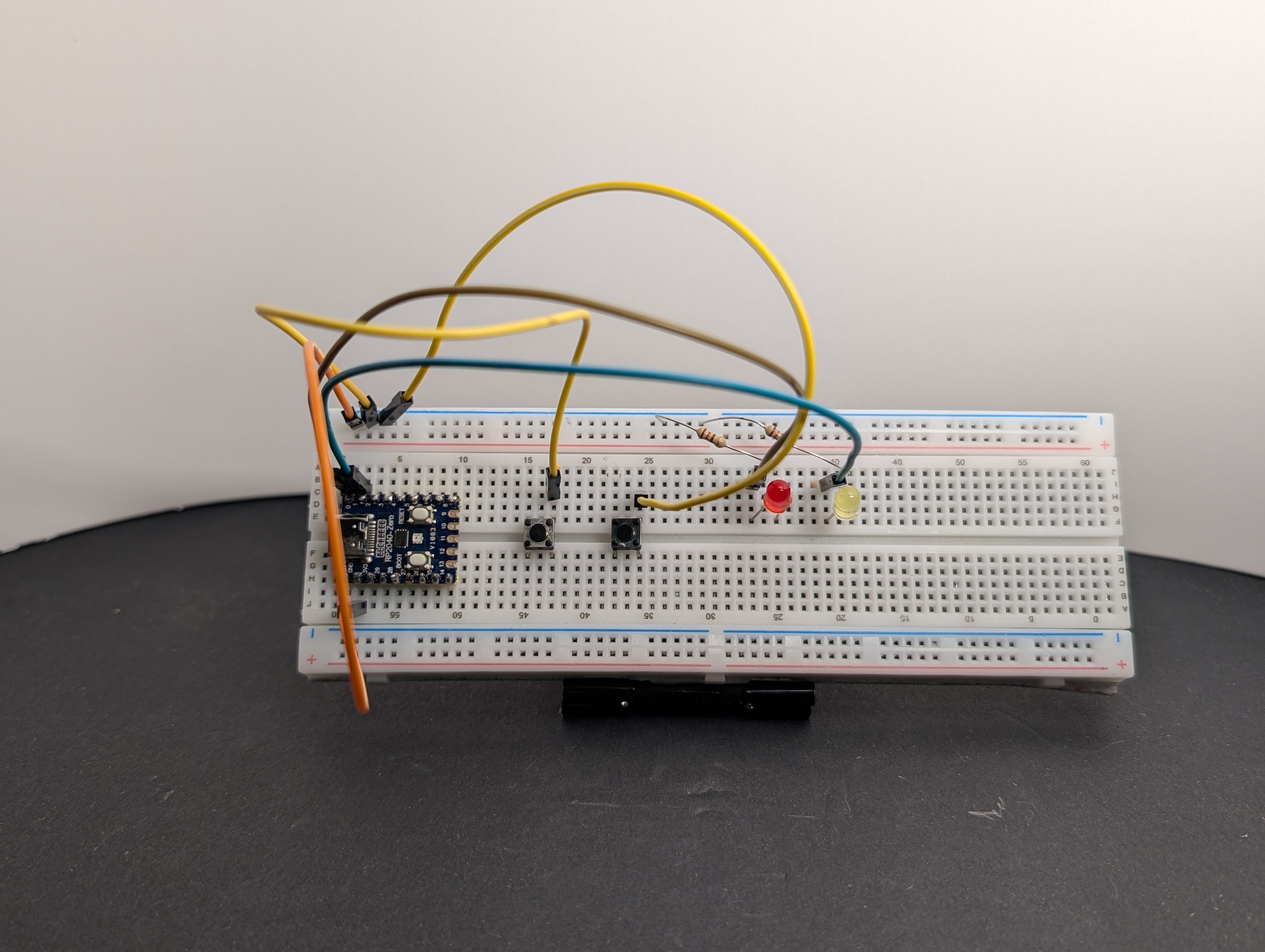
-
Connect the other side of each button to a GPIO pin: button A to
GP2 (GPIO 2)and button B toGP3 (GPIO 3).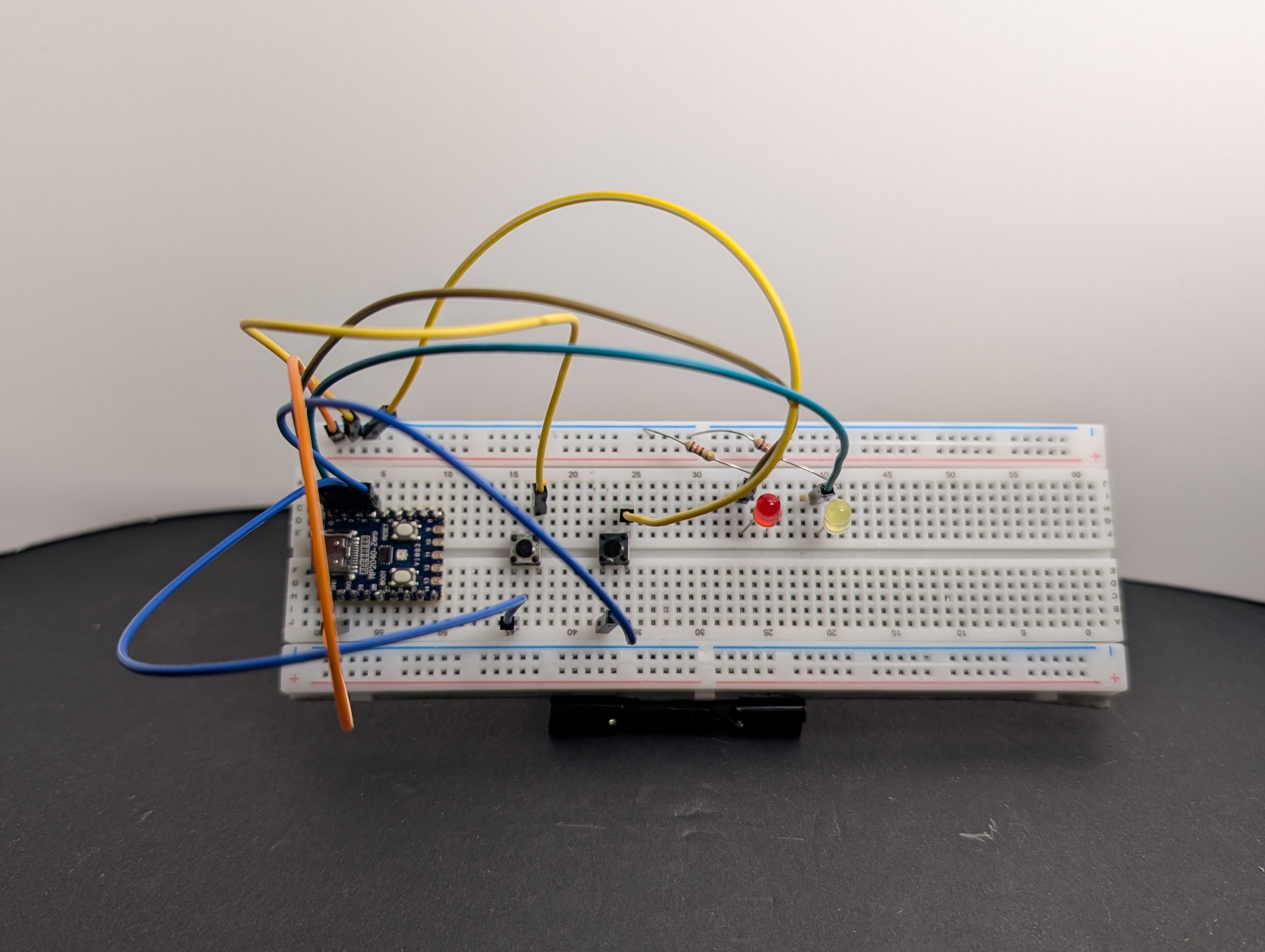
-
Plug the board into USB, load the code below, then press each button.


Only one LED should be on at a time, and both should turn off when you let go.
Code
Pin reminder
Wired your LEDs or buttons to different GPIO pins? Update LED_A_GPIO, LED_B_GPIO, BUTTON_A_GPIO, and BUTTON_B_GPIO in the code below to match your wiring.
import machine
import time

# If you wired different GPIO pins, change these numbers to match.
LED_A_GPIO = 0  # red LED in our build
LED_B_GPIO = 1  # yellow LED in our build
BUTTON_A_GPIO = 2
BUTTON_B_GPIO = 3

# Pin mapping
led_a = machine.Pin(LED_A_GPIO, machine.Pin.OUT)
led_b = machine.Pin(LED_B_GPIO, machine.Pin.OUT)

# Buttons connect to GND, so use the internal pull-up resistors.
# Not pressed = 1, pressed = 0
button_a = machine.Pin(BUTTON_A_GPIO, machine.Pin.IN, machine.Pin.PULL_UP)
button_b = machine.Pin(BUTTON_B_GPIO, machine.Pin.IN, machine.Pin.PULL_UP)

print("Color Picker Starting...")

while True:
    if button_a.value() == 0:
        # Button A pressed: LED A only
        led_a.value(1)
        led_b.value(0)
    elif button_b.value() == 0:
        # Button B pressed: LED B only
        led_a.value(0)
        led_b.value(1)
    else:
        # No button pressed: both off
        led_a.value(0)
        led_b.value(0)

    time.sleep(0.01)  # Short pause between checks
Arduino Code Coming Soon
What to notice
- Buttons are inputs
- LEDs are outputs
- The code checks the buttons again and again in a loop
Challenge
Change which LED each button controls, or make both LEDs turn on when both buttons are pressed.
Harder challenge: make each LED stay on after you let go of its button, and turn off when you press that button again. (Hint: you will need a variable to remember whether each LED is on or off.)